Recipe Book
End-to-end recipes for common Slack messaging patterns. Each example produces a complete, valid Message (or Modal) you can pass directly to the Slack SDK.
The reference docs cover what each class does in isolation; this page is for how to combine them into something useful.
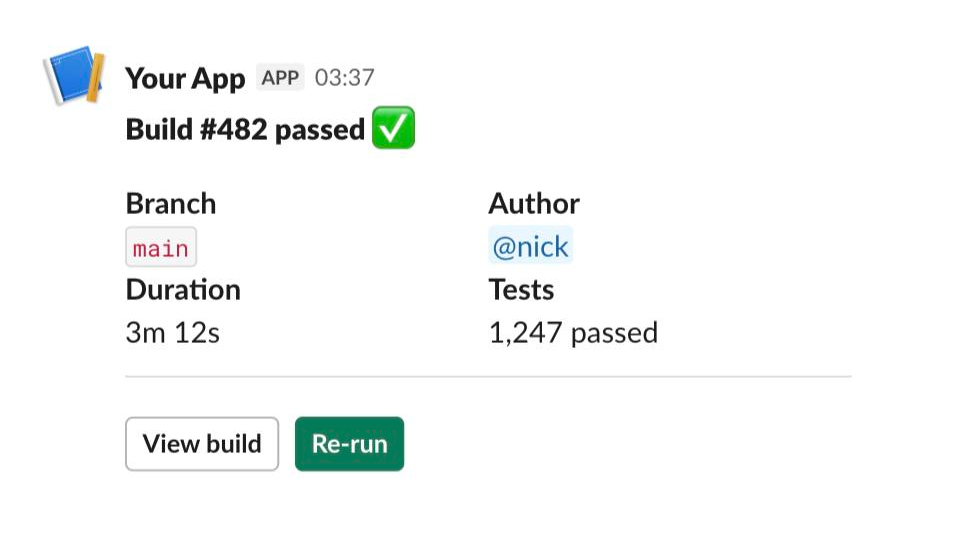
Build status notification
A CI notification with summary fields and a contextual footer.
from slackblocks import (
    ContextBlock,
    DividerBlock,
    HeaderBlock,
    Message,
    SectionBlock,
    Text,
)


def build_status_message(
    *,
    channel: str,
    project: str,
    branch: str,
    commit: str,
    author: str,
    duration: str,
    passed: bool,
) -> Message:
    icon = ":white_check_mark:" if passed else ":x:"
    status = "passed" if passed else "failed"

    return Message(
        channel=channel,
        text=f"Build {status} for {project}@{branch}",  # plain-text fallback
        blocks=[
            HeaderBlock(f"{icon} {project} build {status}"),
            SectionBlock(
                fields=[
                    f"*Branch*\n`{branch}`",
                    f"*Commit*\n`{commit[:7]}`",
                    f"*Author*\n{author}",
                    f"*Duration*\n{duration}",
                ],
            ),
            DividerBlock(),
            ContextBlock(
                elements=[
                    Text(f":calendar: Triggered by push to `{branch}`"),
                ],
            ),
        ],
    )
Tips:
- Always pass a
text=fallback toMessage— Slack uses it for desktop and mobile push notifications. SectionBlockaccepts up to 10fields, each up to 2,000 characters.
Approval request with action buttons
A two-button approval flow. The buttons carry value and action_id so your interaction handler can identify them.
from slackblocks import (
    ActionsBlock,
    Button,
    ContextBlock,
    HeaderBlock,
    Message,
    SectionBlock,
    Text,
)


def approval_request(*, channel: str, request_id: str, requester: str, summary: str) -> Message:
    return Message(
        channel=channel,
        text=f"Approval requested by {requester}",
        blocks=[
            HeaderBlock(":hand: Approval needed"),
            SectionBlock(text=f"*Requested by:* {requester}\n\n{summary}"),
            ActionsBlock(
                block_id=f"approval:{request_id}",
                elements=[
                    Button(
                        text="Approve",
                        action_id="approve",
                        value=request_id,
                        style="primary",
                    ),
                    Button(
                        text="Reject",
                        action_id="reject",
                        value=request_id,
                        style="danger",
                    ),
                    Button(
                        text="View details",
                        action_id="details",
                        url=f"https://approvals.example.com/{request_id}",
                    ),
                ],
            ),
            ContextBlock(
                elements=[Text(f"Request ID: `{request_id}`")],
            ),
        ],
    )
When the user clicks a button, Slack will POST an interaction payload to your app. Match on action_id (approve / reject / details) and pull the request ID from block_id or the button's value.
Rich-formatted alert
Use RichTextBlock when you want inline bold/italic/code styling without writing markdown by hand.
from slackblocks import (
    Message,
    RichText,
    RichTextBlock,
    RichTextLink,
    RichTextSection,
)


def deploy_alert(*, channel: str, service: str, version: str, dashboard_url: str) -> Message:
    return Message(
        channel=channel,
        text=f"Deployed {service} {version}",
        blocks=[
            RichTextBlock(
                RichTextSection(
                    elements=[
                        RichText(text="Deployed "),
                        RichText(text=service, bold=True),
                        RichText(text=" version "),
                        RichText(text=version, code=True),
                        RichText(text=". "),
                        RichTextLink(url=dashboard_url, text="View dashboard"),
                        RichText(text="."),
                    ],
                ),
            ),
        ],
    )
Confirmation modal
A modal is opened in response to an interaction trigger_id from Slack.
from slack_sdk import WebClient
from slackblocks import (
    InputBlock,
    Modal,
    PlainTextInput,
    SectionBlock,
)


def open_confirmation_modal(client: WebClient, trigger_id: str, target: str) -> None:
    modal = Modal(
        title="Confirm deletion",
        submit="Delete",
        close="Cancel",
        callback_id="confirm_delete",
        private_metadata=target,  # round-tripped back to your handler on submit
        blocks=[
            SectionBlock(f":warning: This will permanently delete *{target}*."),
            InputBlock(
                label="Type the name to confirm",
                element=PlainTextInput(
                    action_id="confirmation_text",
                    placeholder=target,
                ),
                block_id="confirmation",
            ),
        ],
    )

    client.views_open(trigger_id=trigger_id, view=modal.to_dict())
When the user submits, your view_submission handler will receive the input under state.values["confirmation"]["confirmation_text"].
Threaded reply
Pass thread_ts (the timestamp of the parent message) to reply in-thread.
from slackblocks import Message, SectionBlock

reply = Message(
    channel="#general",
    thread_ts="1700000000.000100",
    blocks=SectionBlock("Reticulating splines... 30% complete."),
)
Ephemeral slash-command response
Reply to a slash command with a message only the invoking user sees:
from slackblocks import MessageResponse, SectionBlock

body = MessageResponse(
    blocks=SectionBlock(":mag: Searching... I'll DM you when I'm done."),
    ephemeral=True,
).json()
# return `body` as the JSON response to Slack's slash-command webhook
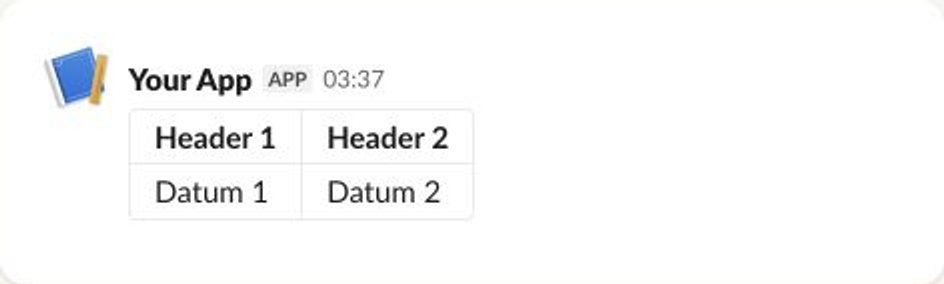
Multi-column status report (table)
TableBlock is useful for compact tabular output.
from slackblocks import (
    ColumnSettings,
    Message,
    RawText,
    RichText,
    RichTextSection,
    TableBlock,
)


def header_cell(text: str) -> RichTextSection:
    return RichTextSection(elements=[RichText(text=text, bold=True)])


report = Message(
    channel="#ops",
    text="Daily service report",
    blocks=[
        TableBlock(
            column_settings=[
                ColumnSettings(align="left"),
                ColumnSettings(align="right"),
                ColumnSettings(align="right"),
            ],
            rows=[
                [header_cell("Service"), header_cell("p99 (ms)"), header_cell("Errors")],
                [RawText("api"),     RawText("142"), RawText("3")],
                [RawText("worker"),  RawText("89"),  RawText("0")],
                [RawText("billing"), RawText("310"), RawText("12")],
            ],
        ),
    ],
)
Deprecated: colored-bar attachment
Slack has long deprecated message attachments, but they're still the only way to get the colored vertical bar on the left of a message. slackblocks supports them when you really need that styling:
from slackblocks import (
    Attachment,
    Color,
    Message,
    SectionBlock,
)

msg = Message(
    channel="#alerts",
    text="Disk usage warning",
    attachments=[
        Attachment(
            color=Color.YELLOW,
            blocks=[SectionBlock(":warning: `/var` is at 87% capacity on `prod-db-1`.")],
        ),
    ],
)
Prefer plain blocks where possible — Slack may drop attachment support in the future.
Preview a message in the browser
Use block_kit_builder_url to build a Block Kit Builder URL and open it in your browser to verify a message before posting it. Useful while iterating on layout — no Slack credentials needed.
from slackblocks import (
    block_kit_builder_url,
    DividerBlock,
    HeaderBlock,
    Markdown,
    SectionBlock,
)

blocks = [
    HeaderBlock("Build #482 passed :white_check_mark:"),
    SectionBlock(text=Markdown("All 1,247 tests green in 3m 12s.")),
    DividerBlock(),
    SectionBlock(fields=["*Author*\n@nick", "*Branch*\n`main`"]),
]

print(block_kit_builder_url(blocks))
# https://app.slack.com/block-kit-builder/#%7B%22blocks%22%3A%5B...%5D%7D
block_kit_builder_url accepts:
- A single
Block,Element, or anything else with a_resolve()method. - A list of
Blockobjects (wrapped in{"blocks": [...]}automatically). - A
Message,WebhookMessage,MessageResponse, orView. - A raw
dict(escape hatch).
Pass team_id="T0123ABCD" for a workspace-specific URL.
Parse incoming Slack JSON
If your app handles Slack interactivity payloads or events, you can parse the JSON back into slackblocks objects with Block.from_dict:
import json
from slackblocks import Block, SectionBlock

incoming = json.loads(slack_request_body)

for raw_block in incoming.get("blocks", []):
    block = Block.from_dict(raw_block)
    if isinstance(block, SectionBlock):
        print("Section text:", block.text.text if block.text else None)
Block.from_dict reads data["type"] and dispatches to the right subclass. The composition objects (Text, Option, Confirm, etc.) round-trip fully via their own from_dict classmethods.
In the current release, blocks containing interactive elements (ActionsBlock, InputBlock, SectionBlock with an accessory, ContextBlock with image elements) raise NotImplementedError — this is on the roadmap for a follow-up release.
One-line workflow trigger
Workflow.from_url collapses the most common workflow construction:
from slackblocks import (
    ActionsBlock,
    Message,
    SectionBlock,
    Workflow,
    WorkflowButton,
)

msg = Message(
    channel="#release",
    blocks=[
        SectionBlock("Run the release workflow with the parameters below."),
        ActionsBlock(
            elements=[
                WorkflowButton(
                    text="Release",
                    action_id="release",
                    workflow=Workflow.from_url(
                        "https://slack.com/shortcuts/Ft012KXZK1MZ/...",
                        env="prod",
                        retries="3",
                    ),
                ),
            ],
        ),
    ],
)
Each keyword pair becomes one InputParameter on the underlying Trigger. Calling Workflow.from_url(url) with no parameters omits the customizable_input_parameters field.
Typed exception handling
InvalidUsageError is the base type for every validation failure raised by slackblocks. As of 2.x, five subclasses let you except for specific failure categories instead of string-matching the message:
from slackblocks import (
    Button,
    LengthError,
    MutualExclusivityError,
    SlackFile,
    Image,
)

try:
    Button(text="x" * 100, action_id="b")
except LengthError as e:
    # specifically a length violation, not a missing-required or type-mismatch
    log.warning("button text too long: %s", e)

try:
    Image(
        image_url="https://x.png",
        slack_file=SlackFile(url="https://y.png", id=None),
    )
except MutualExclusivityError as e:
    log.error("image source ambiguous: %s", e)
Existing except InvalidUsageError blocks continue to catch every subclass — the new types are purely additive.
Build status notification
import {
  ContextBlock,
  DividerBlock,
  HeaderBlock,
  Markdown,
  Message,
  SectionBlock,
} from "@nicklambourne/slackblocks";

function buildStatusMessage(input: {
  channel: string;
  project: string;
  branch: string;
  commit: string;
  author: string;
  duration: string;
  passed: boolean;
}) {
  const icon = input.passed ? ":white_check_mark:" : ":x:";
  const status = input.passed ? "passed" : "failed";

  return Message()
    .channel(input.channel)
    .text(`Build ${status} for ${input.project}@${input.branch}`)
    .blocks(
      HeaderBlock().text(`${icon} ${input.project} build ${status}`),
      SectionBlock().fields(
        `*Branch*\n\`${input.branch}\``,
        `*Commit*\n\`${input.commit.slice(0, 7)}\``,
        `*Author*\n${input.author}`,
        `*Duration*\n${input.duration}`,
      ),
      DividerBlock(),
      ContextBlock().elements(
        Markdown().text(`:calendar: Triggered by push to \`${input.branch}\``),
      ),
    )
    .build();
}
Build status notification
package notifications

import (
    "fmt"

    slackblocks "github.com/nicklambourne/slackblocks/go/v2"
)

func BuildStatusMessage(channel, project, branch, commit, author, duration string, passed bool) (slackblocks.Object, error) {
    icon, status := ":x:", "failed"
    if passed {
        icon, status = ":white_check_mark:", "passed"
    }

    return slackblocks.NewMessage().
        Channel(channel).
        Text(fmt.Sprintf("Build %s for %s@%s", status, project, branch)).
        Blocks(
            slackblocks.NewHeaderBlock().Text(fmt.Sprintf("%s %s build %s", icon, project, status)),
            slackblocks.NewSectionBlock().Fields(
                fmt.Sprintf("*Branch*\n`%s`", branch),
                fmt.Sprintf("*Commit*\n`%.7s`", commit),
                fmt.Sprintf("*Author*\n%s", author),
                fmt.Sprintf("*Duration*\n%s", duration),
            ),
            slackblocks.NewDividerBlock(),
            slackblocks.NewContextBlock().Elements(
                slackblocks.NewMarkdown().Text(fmt.Sprintf(":calendar: Triggered by push to `%s`", branch)),
            ),
        ).
        Build()
}
Build status notification
import io.github.nicklambourne.slackblocks.block.ContextBlock;
import io.github.nicklambourne.slackblocks.block.DividerBlock;
import io.github.nicklambourne.slackblocks.block.HeaderBlock;
import io.github.nicklambourne.slackblocks.block.SectionBlock;
import io.github.nicklambourne.slackblocks.object.MarkdownText;
import io.github.nicklambourne.slackblocks.payload.MessagePayload;

static MessagePayload buildStatusMessage(
    String channel,
    String project,
    String branch,
    String commit,
    String author,
    String duration,
    boolean passed) {
  String icon = passed ? ":white_check_mark:" : ":x:";
  String status = passed ? "passed" : "failed";

  return MessagePayload.builder()
      .channel(channel)
      .text("Build " + status + " for " + project + "@" + branch)
      .blocks(
          HeaderBlock.builder().text(icon + " " + project + " build " + status).build(),
          SectionBlock.builder().markdownFields(
              "*Branch*\n`" + branch + "`",
              "*Commit*\n`" + commit.substring(0, Math.min(7, commit.length())) + "`",
              "*Author*\n" + author,
              "*Duration*\n" + duration).build(),
          DividerBlock.builder().build(),
          ContextBlock.builder().elements(
              MarkdownText.of(":calendar: Triggered by push to `" + branch + "`")).build())
      .build();
}
Build status notification
using Slackblocks.Blocks;
using Slackblocks.Objects;
using Slackblocks.Payloads;

static MessagePayload BuildStatusMessage(
    string channel,
    string project,
    string branch,
    string commit,
    string author,
    string duration,
    bool passed)
{
    var icon = passed ? ":white_check_mark:" : ":x:";
    var status = passed ? "passed" : "failed";

    return new MessagePayload(
        channel,
        text: $"Build {status} for {project}@{branch}",
        blocks:
        [
            new HeaderBlock($"{icon} {project} build {status}"),
            new SectionBlock(fields:
            [
                $"*Branch*\n`{branch}`",
                $"*Commit*\n`{commit[..Math.Min(7, commit.Length)]}`",
                $"*Author*\n{author}",
                $"*Duration*\n{duration}",
            ]),
            new DividerBlock(),
            new ContextBlock([new MarkdownText($":calendar: Triggered by push to `{branch}`")]),
        ]);
}
Build status notification
Ruby values use keyword constructors. Complete messages serialize to Slack-shaped hashes through as_json and to JSON through to_json.
require "slackblocks"

message = Slackblocks::MessagePayload.new(
  channel: "C01234567",
  text: "Build passed for example/main",
  blocks: [
    Slackblocks::HeaderBlock.new(text: "Build passed"),
    Slackblocks::SectionBlock.new(fields: ["*Branch*\n`main`", "*Status*\nPassed"]),
    Slackblocks::DividerBlock.new,
    Slackblocks::ContextBlock.new(elements: [Slackblocks::MarkdownText.new(text: "Triggered by a push")])
  ]
)
puts message.to_json
For a simple approval request, use an action ID that your Slack interaction handler recognizes:
require "slackblocks"

message = Slackblocks::MessagePayload.new(
  channel: "C01234567",
  text: "Approval requested",
  blocks: [
    Slackblocks::SectionBlock.new(text: "Approve the deployment?"),
    Slackblocks::ActionsBlock.new(elements: [
      Slackblocks::ButtonElement.new(text: "Approve", action_id: "approve", value: "release-42")
    ])
  ]
)
puts message.to_json
Use Slackblocks::ModalView.new(title: "Approval", blocks: [...]) for a modal. See Payloads and Components for more patterns.
Rust recipes use owned, validated values and propagate errors with ?. Sending
is a separate application concern; see Sending Messages.
Build status notification
use slackblocks::*;

fn main() -> Result<(), Box<dyn std::error::Error>> {
    let message = MessagePayload::builder("C01234567")
        .text("Build passed for example/main")
        .block(HeaderBlock::builder().text("Build passed").build()?)
        .block(
            SectionBlock::builder()
                .fields(["*Branch*\n`main`", "*Status*\nPassed"])
                .build()?,
        )
        .block(DividerBlock::builder().build()?)
        .block(
            ContextBlock::builder()
                .element(MarkdownText::new("Triggered by a push")?)
                .build()?,
        )
        .build()?;
    println!("{}", serde_json::to_string(&message)?);
    Ok(())
}
Rich-formatted alert
use slackblocks::*;

fn main() -> Result<(), Box<dyn std::error::Error>> {
    let rich = RichTextBlock::builder()
        .element(
            RichTextSection::builder()
                .element(
                    RichTextText::builder()
                        .text("Deployment needs attention")
                        .style(RichTextStyle::new().bold(true))
                        .build()?,
                )
                .build()?,
        )
        .build()?;
    let message = MessagePayload::builder("C01234567")
        .text("Deployment needs attention")
        .block(rich)
        .build()?;
    println!("{}", serde_json::to_string(&message)?);
    Ok(())
}
Confirmation modal
use slackblocks::*;

fn main() -> Result<(), Box<dyn std::error::Error>> {
    let modal = ModalView::builder()
        .title("Approval")
        .submit("Approve")
        .close("Cancel")
        .block(
            InputBlock::builder()
                .label("Reason")
                .element(
                    PlainTextInputElement::builder()
                        .action_id("reason")
                        .build()?,
                )
                .build()?,
        )
        .build()?;
    println!("{}", serde_json::to_string(&modal)?);
    Ok(())
}
Input blocks require a modal submit label. Put this view in a views.open
request alongside the interaction's trigger ID.
Multi-column status report (table)
use slackblocks::*;

fn main() -> Result<(), Box<dyn std::error::Error>> {
    let table = TableBlock::builder()
        .rows([
            vec![RawText::new("Service")?, RawText::new("Status")?],
            vec![RawText::new("API")?, RawText::new("Healthy")?],
        ])
        .build()?;
    println!("{}", serde_json::to_string(&table)?);
    Ok(())
}
Plain tables permit ragged rows; data tables require rectangular rows and raw
header cells. DataTableBlock also checks its caption and text totals.
Reusable accordion and pagination
use slackblocks::*;

fn main() -> Result<(), Box<dyn std::error::Error>> {
    let details = AccordionSection::builder("Details")
        .block(SectionBlock::builder().text("All checks passed").build()?)
        .build()?;
    let accordion = Accordion::new([details])?;
    let page = Paginator::builder("builds", accordion)
        .page_size(5)
        .build()?;
    let message = MessagePayload::builder("C01234567")
        .text("Build details")
        .blocks(page)
        .build()?;
    println!("{}", serde_json::to_string(&message)?);
    Ok(())
}
Pagination uses one-based pages. Navigation action IDs end in .previous or
.next, and button values contain the destination page. Your interaction handler
rebuilds the next page. The receiving message validates limits after expansion.
Approval request with action buttons
Your interaction handler matches the action ID and reads the request ID from the button value.
use slackblocks::*;
fn main() -> Result<(), Box<dyn std::error::Error>> {
    let actions = ActionsBlock::builder()
        .element(
            ButtonElement::builder()
                .text("Approve")
                .action_id("approve")
                .value("release-42")
                .style(ButtonStyle::Primary)
                .build()?,
        )
        .element(
            ButtonElement::builder()
                .text("Reject")
                .action_id("reject")
                .value("release-42")
                .style(ButtonStyle::Danger)
                .build()?,
        )
        .build()?;
    let message = MessagePayload::builder("C01234567")
        .text("Approval requested")
        .block(
            SectionBlock::builder()
                .text("Approve this release?")
                .build()?,
        )
        .block(actions)
        .build()?;
    println!("{}", serde_json::to_string(&message)?);
    Ok(())
}
Threaded reply
Threading is an unmodeled delivery option. Add the parent message timestamp as
a checked extension, or set thread_ts on your HTTP/Slack request.
use slackblocks::*;
fn main() -> Result<(), Box<dyn std::error::Error>> {
    let reply = MessagePayload::builder("C01234567")
        .extension("thread_ts", "1700000000.000100")
        .text("30% complete")
        .block(
            SectionBlock::builder()
                .text("Reticulating splines... 30% complete.")
                .build()?,
        )
        .build()?;
    println!("{}", serde_json::to_string(&reply)?);
    Ok(())
}
Ephemeral slash-command response
Set response visibility explicitly when it matters; return this JSON in your interaction handler.
use slackblocks::*;
fn main() -> Result<(), Box<dyn std::error::Error>> {
    let response = MessageResponse::builder()
        .response_type(ResponseType::Ephemeral)
        .block(
            SectionBlock::builder()
                .text("Searching... I will DM you when done.")
                .build()?,
        )
        .build()?;
    println!("{}", serde_json::to_string(&response)?);
    Ok(())
}
Colored-bar attachment
Attachments are a legacy Slack feature. AttachmentColor supports semantic colors, named constants and checked six-digit hex parsing.
use slackblocks::*;
fn main() -> Result<(), Box<dyn std::error::Error>> {
    let attachment = Attachment::builder()
        .color(AttachmentColor::YELLOW)
        .block(
            SectionBlock::builder()
                .text(":warning: Disk usage is at 87%.")
                .build()?,
        )
        .build()?;
    let message = MessagePayload::builder("C01234567")
        .text("Disk usage warning")
        .attachment(attachment)
        .build()?;
    println!("{}", serde_json::to_string(&message)?);
    Ok(())
}
Preview a message in the browser
The helper encodes UTF-8 JSON in a Builder URL without sending a request. It borrows blocks and payloads.
use slackblocks::*;
fn main() -> Result<(), Box<dyn std::error::Error>> {
    let block: Block = SectionBlock::builder()
        .text("Preview this message")
        .build()?
        .into();
    println!("{}", block_kit_builder_url(&block, Some("T0123ABCD"))?);
    Ok(())
}
Parse modeled Block Kit JSON
Use TryFrom<Value> for structured validation errors. This parses modeled outbound shapes, not arbitrary inbound event envelopes.
use slackblocks::*;
fn main() -> Result<(), Box<dyn std::error::Error>> {
    let input =
        serde_json::json!({"type":"section","text":{"type":"mrkdwn","text":"Checked input"}});
    let block = Block::try_from(input)?;
    match &block {
        Block::Section(section) => assert!(section.text().is_some()),
        _ => panic!("expected a section"),
    }
    println!("{}", serde_json::to_string(&block)?);
    Ok(())
}
Workflow trigger shortcut
Input parameters retain iterator order. An empty iterator omits the parameter list.
use slackblocks::*;
fn main() -> Result<(), Box<dyn std::error::Error>> {
    let workflow = Workflow::from_url(
        "https://slack.com/shortcuts/Ft012KXZK1MZ/example",
        [
            InputParameter::builder()
                .name("env")
                .value("prod")
                .build()?,
            InputParameter::builder()
                .name("retries")
                .value("3")
                .build()?,
        ],
    )?;
    let button = WorkflowButtonElement::builder()
        .text("Release")
        .action_id("release")
        .workflow(workflow)
        .build()?;
    println!("{}", serde_json::to_string(&button)?);
    Ok(())
}
See Troubleshooting for typed error handling, omission rules and safe editing.
PHP examples are standalone programs using your application autoloader. They only construct or serialize values.
Build status notification
<?php

declare(strict_types=1);

require 'vendor/autoload.php';

use Slackblocks as S;

$message = new S\MessagePayload(
    channel: 'C0123456789',
    text: 'Build #482 passed',
    blocks: [
        new S\HeaderBlock('Build #482 passed'),
        new S\SectionBlock(fields: ["*Branch*\n`main`", "*Tests*\n1,247 passed"]),
        new S\ActionsBlock(elements: [
            new S\ButtonElement(text: 'View build', actionId: 'view', url: 'https://ci.example.com/482'),
        ]),
    ],
);
echo $message->toJson();
Approval request with action buttons
<?php

declare(strict_types=1);

require 'vendor/autoload.php';

use Slackblocks as S;

$message = new S\MessagePayload(channel: 'C1', text: 'Approval requested', blocks: [
    new S\SectionBlock('*Approve deployment?*'),
    new S\ActionsBlock(elements: [
        new S\ButtonElement(text: 'Approve', actionId: 'approve', value: '482', style: S\ButtonStyle::Primary),
        new S\ButtonElement(text: 'Reject', actionId: 'reject', value: '482', style: S\ButtonStyle::Danger),
    ]),
]);
echo $message->toJson();
Rich-formatted alert
<?php

declare(strict_types=1);

require 'vendor/autoload.php';

use Slackblocks as S;

$view = new S\ModalView(title: 'Deployment', blocks: [
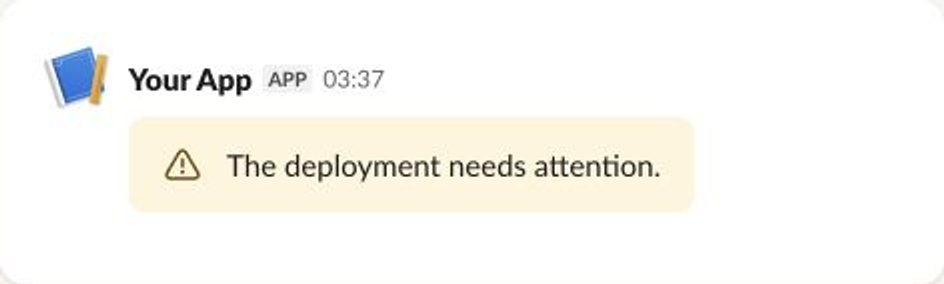
    new S\AlertBlock(text: '*Attention:* deployment paused', level: S\AlertLevel::Warning),
    new S\RichTextBlock(elements: [new S\RichTextSection(elements: [
        new S\RichTextText(text: 'Review the checks', style: new S\RichTextStyle(bold: true)),
    ])]),
]);
echo $view->toJson();
Confirmation modal
<?php

declare(strict_types=1);

require 'vendor/autoload.php';

use Slackblocks as S;

$view = new S\ModalView(title: 'Confirm deployment', submit: 'Deploy', callbackId: 'deploy', blocks: [
    new S\InputBlock(label: 'Reason', blockId: 'reason', element: new S\PlainTextInputElement(actionId: 'reason_input')),
]);
echo $view->toJson();
Threaded reply
<?php

declare(strict_types=1);

require 'vendor/autoload.php';

use Slackblocks as S;

$message = new S\MessagePayload(channel: 'C1', text: 'Deployment complete', extensions: new S\JsonObject([
    'thread_ts' => '1700000000.000001',
]));
echo $message->toJson();
Ephemeral slash-command response
<?php

declare(strict_types=1);

require 'vendor/autoload.php';

use Slackblocks as S;

$response = new S\MessageResponse(text: 'Only you can see this', responseType: S\ResponseType::Ephemeral);
echo $response->toJson();
Multi-column status report
<?php

declare(strict_types=1);

require 'vendor/autoload.php';

use Slackblocks as S;

$table = new S\TableBlock(rows: [
    [new S\RawText('Service'), new S\RawText('Status')],
    [new S\RawText('API'), new S\RawText('Healthy')],
]);
echo $table->toJson();
Colored-bar attachment
<?php

declare(strict_types=1);

require 'vendor/autoload.php';

use Slackblocks as S;

$message = new S\MessagePayload(channel: 'C1', text: 'Deployment passed', attachments: [
    new S\Attachment(blocks: [new S\SectionBlock('All checks passed')], color: S\Color::GOOD),
]);
echo $message->toJson();
Preview a message
<?php

declare(strict_types=1);

require 'vendor/autoload.php';

use Slackblocks as S;

$message = new S\MessagePayload(channel: 'C1', text: 'Preview', blocks: [new S\SectionBlock('*Preview*')]);
echo S\Builder::url($message);
Parse incoming modeled JSON
<?php

declare(strict_types=1);

require 'vendor/autoload.php';

use Slackblocks as S;

$section = S\SectionBlock::fromJson('{"type":"section","text":{"type":"mrkdwn","text":"Hello"},"future_field":{"enabled":false}}');
echo $section->with(blockId: 'welcome')->toJson();
Workflow trigger shortcut
<?php

declare(strict_types=1);

require 'vendor/autoload.php';

use Slackblocks as S;

$workflow = S\Workflow::fromUrl('https://slack.com/shortcuts/Ft123', [new S\InputParameter(name: 'deployment', value: '482')]);
echo $workflow->toJson();
Accordion and pagination
<?php

declare(strict_types=1);

require 'vendor/autoload.php';

use Slackblocks as S;

$sections = S\Accordion::create([
    S\AccordionSection::create(title: 'Details', blocks: [new S\SectionBlock('Ready')]),
]);
$pages = S\Paginator::create(actionIdPrefix: 'releases', blocks: [new S\SectionBlock('One'), new S\SectionBlock('Two')], page: 1, pageSize: 1);
$view = new S\MessagePayload(channel: 'C1', text: 'Releases', blocks: [...$sections, ...$pages]);
echo $view->toJson();
Opaque metadata and safe edits
<?php

declare(strict_types=1);

require 'vendor/autoload.php';

use Slackblocks as S;

$metadata = new S\JsonObject(['event_type' => 'deployment', 'event_payload' => (object) ['context' => (object) [], 'optional' => null]]);
$message = new S\MessagePayload(channel: 'C1', text: 'Ready', metadata: $metadata, unfurlLinks: false);
$edited = $message->with(text: 'Complete');
assert($message->text === 'Ready');
echo $edited->toJson();
Each example is a complete Elixir expression evaluated by the docs checks. Sending remains an application choice.
Build status notification
alias Slackblocks.{Message, Blocks, Elements}
message = Message.new!(
  channel: "C0123456789",
  text: "Build #482 passed",
  blocks: [
    Blocks.Header.new!(text: "Build #482 passed"),
    Blocks.Section.new!(fields: ["*Branch*\n`main`", "*Tests*\n1,247 passed"]),
    Blocks.Actions.new!(elements: [
      Elements.Button.new!(text: "View build", action_id: "view", url: "https://ci.example.com/482")
    ])
  ]
)
Slackblocks.to_map!(message)
Approval request with action buttons
alias Slackblocks.{Message, Blocks, Elements.Button}
Message.new!(channel: "C1", text: "Approval requested", blocks: [
  Blocks.Section.new!(text: "*Approve deployment?*"),
  Blocks.Actions.new!(elements: [
    Button.new!(text: "Approve", action_id: "approve", value: "482", style: :primary),
    Button.new!(text: "Reject", action_id: "reject", value: "482", style: :danger)
  ])
]) |> Slackblocks.to_map!()
Rich-formatted alert
alias Slackblocks.{Blocks, RichText, Views.Modal}
Modal.new!(title: "Deployment", blocks: [
  Blocks.Alert.new!(text: "*Attention:* deployment paused", level: :warning),
  Blocks.RichText.new!(elements: [RichText.Section.new!(elements: [
    RichText.Text.new!(text: "Review the checks", style: RichText.Style.new!(bold: true))
  ])])
]) |> Slackblocks.to_map!()
Confirmation modal
alias Slackblocks.{Blocks.Input, Elements.PlainTextInput, Views.Modal}
Modal.new!(title: "Confirm deployment", submit: "Deploy", callback_id: "deploy", blocks: [
  Input.new!(label: "Reason", block_id: "reason", element: PlainTextInput.new!(action_id: "reason_input"))
]) |> Slackblocks.to_map!()
Threaded reply
wire = Slackblocks.Message.new!(channel: "C1", text: "Deployment complete")
|> Slackblocks.to_map!()
Map.put(wire, "thread_ts", "1700000000.000001")
Transport-specific fields outside the shared model can be added to the validated map in application code. Such additions are not validated by slackblocks.
Ephemeral interaction response
Slackblocks.MessageResponse.new!(text: "Only you can see this", response_type: :ephemeral)
|> Slackblocks.to_map!()
Multi-column status report (table)
alias Slackblocks.{Message, Blocks.Table, Objects.RawText}
rows = for row <- [["Service", "Status"], ["API", "Healthy"], ["Worker", "Degraded"]] do
  for text <- row, do: RawText.new!(text: text)
end
Message.new!(channel: "C1", text: "Service status", blocks: [Table.new!(rows: rows)])
|> Slackblocks.to_map!()
Colored attachment
alias Slackblocks.{Message, Attachment, Color, Blocks.Section}
attachment = Attachment.new!(color: Color.named!(:good), blocks: [Section.new!(text: "All checks passed")])
Message.new!(channel: "C1", text: "Checks passed", attachments: [attachment]) |> Slackblocks.to_map!()
Preview in Block Kit Builder
Slackblocks.Blocks.Section.new!(text: "Preview *this*")
|> Slackblocks.block_kit_builder_url!(team_id: "T123")
This constructs a URL locally; it sends no message or request.
Checked JSON and immutable edits
alias Slackblocks.Blocks.Section
original = Slackblocks.decode!(Section, ~s({"type":"section","text":{"type":"mrkdwn","text":"Before"}}))
updated = Section.change!(original, text: "After", block_id: "edited")
Slackblocks.to_map!(updated)
Workflow button
alias Slackblocks.{Elements.WorkflowButton, Objects.Workflow, Objects.InputParameter}
workflow = Workflow.from_url!("https://slack.com/shortcuts/Ft123/abc", [
  InputParameter.new!(name: "ticket", value: "INC-42")
])
WorkflowButton.new!(text: "Open workflow", workflow: workflow, action_id: "workflow")
|> Slackblocks.to_map!()
Accordion and paginator
alias Slackblocks.{Blocks.Section, Components.Accordion, Components.AccordionSection, Components.Paginator}
sections = Accordion.to_blocks!([AccordionSection.new!(title: "Details", blocks: [Section.new!(text: "Ready")])])
page = Paginator.to_blocks!([Section.new!(text: "One"), Section.new!(text: "Two")], action_id_prefix: "items", page: 1, page_size: 1)
Slackblocks.Message.new!(channel: "C1", text: "Items", blocks: sections ++ page) |> Slackblocks.to_map!()
Opaque metadata preserves JSON values
original = Slackblocks.Message.new!(channel: "C1", metadata: %{
  "event_type" => "build", "event_payload" => %{"count" => 0, "enabled" => false, "missing" => nil, "object" => %{}, "array" => []}
})
updated = Slackblocks.Message.change!(original, text: "Updated")
Slackblocks.to_map!(updated)